Branches
What are branches?
In GIT each commit, identified by a unique hash, has a reference to its parent commit
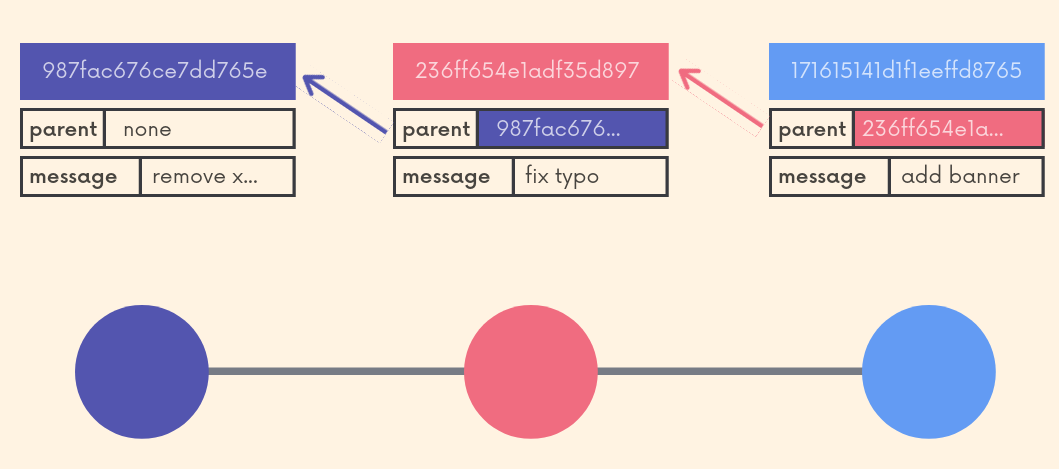
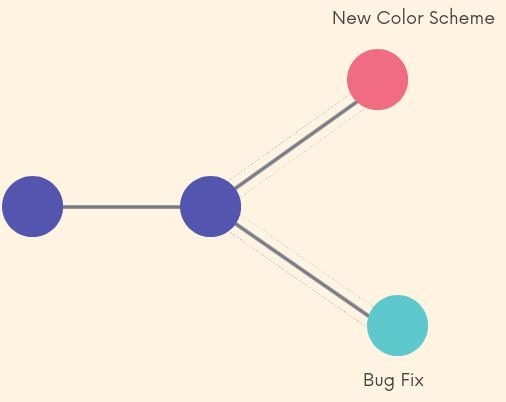
Branches can be tought of as alernate timelines in a project. They exist at the same time but are completely different contexts, so changes in a branch dont affect other branches.
In detail, branching happens when a commit has more that one child commit. In a techinical manner, branches are a reference to a commit (that has a series of parent commits) like shown below:
HEAD pointer
- Points to the current location in the repository ( a branch reference )
- The branch reference is just the reference to the last commit
Commands for branching
git branch
- Shows all local branches of a repository.
git branch -rwill show remote branches andgit branch -awill show all of them. - If used with a name (
git branch name) it will create (but not switch) a new branch based on the current HEAD. - With the
-dflag, it can be used to delete branches. (-Dto force delete) - The
git branch -m new_namewill change the name of the current branch (current HEAD)
git switch
- Allows to switch between existing branches
git switch -c namecan be used to create a new branch and switch to it
git checkout
- Allows to switch between existing branches
- Older command with lots of extra functionalities
git checkout -b namecan be used to create a new branch and switch to it
Uncommited changes will be lost if switching branches (can be stashed). Only if the changes do not conflict, for example new files that dont exist, will these come to the new branch
Merging branches
When working with branches, most of the use cases involves bringing the work done in a branch into the original (or other) branch.
Incorporating changes from one branch to the other, is done with the git merge command.
git merge always merges to the current HEAD branch.
In summary the process is the following:
- Switch to target branch (e.g
git switch master) - Merge branch (e.g
git merge mybranch)
According to the type of differences accross the branches, there could be:
- Different types of merges
- Merge conflicts
Merge Types
Fast forward:
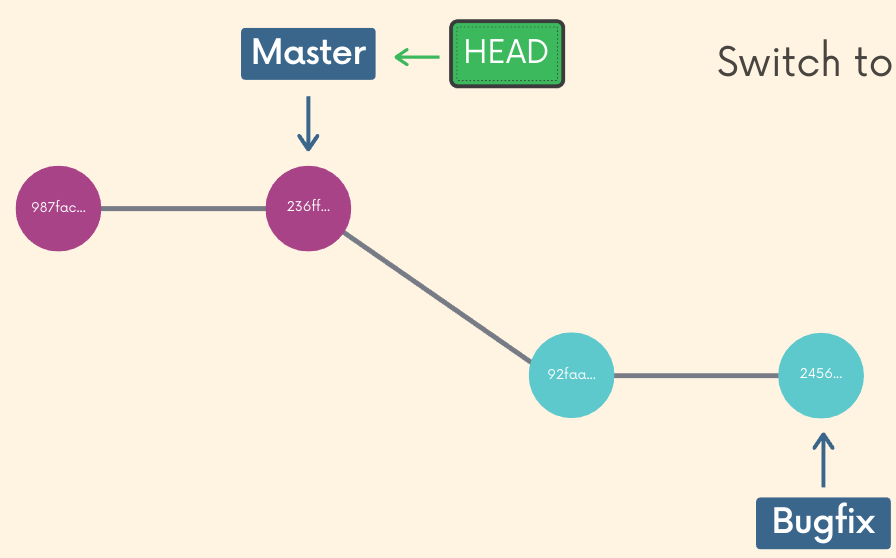
- Simplest type of merge
- Target branch is just behind merging branch
- In other words, the merging branch just have some extra commits.
- Always automatically merged
Merge Commit:
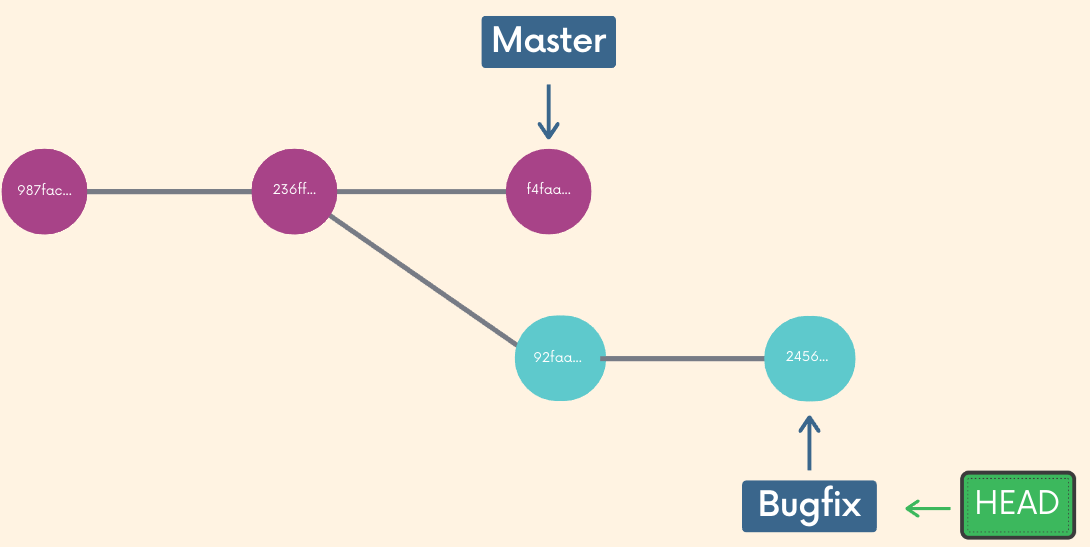
- More common
- There is commits in the target branch that are not in the merging one.
- Can be automatically merged or not, depending on conflicts.
- Makes a commit. Normally asks for a commit message
Merge Conflicts
If a merge operation involves a file that is present but different in both branches, a merge conflict occur. In that case, git cannot decide which “version” should stay, so automatic merging is deactivated and one has to resolve the conflicts manually:
- Files with conflict get “decorated” with
<<<<<<< HEADand>>>>>>> branchto indicate which changes belong to which branch - One decides which to keep (or combines both)
- One removes the decorators
- The files must be saved and committed to apply the merge
- Tools like VSCode offer a GUI for resolving conflicts